
[Reading time: 6 minutes]
Overview
This article is part of the Messaging pool series. It focuses on the Messenger (Facebook Messenger) channel. For the general overview of the pool, see Messaging pool in the Banner.
Messenger is one of the messaging channels handled in the Banner. Customers write to you from Facebook Messenger, through one of your Facebook pages, and their messages are handled exactly like the other messaging interactions: they appear in the messaging pool, where advisors can view, pick up, reply to, transfer, close them, or attach them to CRM elements.
Messenger is an asynchronous channel relayed by Facebook: the customer can reply minutes or hours later, and the conversation stays open for the duration of a configurable session window.
1. How a Messenger message arrives in the pool
Every Facebook page is linked to a Smart Routing. When a customer writes to the page, the message always enters through that Smart Routing, which can:
- qualify the request automatically,
- send automatic messages (text, links, and choice menus rendered as Messenger quick replies),
- then distribute the conversation to the appropriate queue, where it appears under Messages pending.
From there, the interaction is either presented to an available advisor or picked up manually from the pool. Because Messenger interactions come from Smart Routing, they are shown with the smart-routing highlight (red) in the incoming popup.
Note: if a Facebook page has no Smart Routing linked, its incoming Messenger messages are ignored. A Messenger conversation can later be transferred to a specific advisor, queue or Smart Routing (see section 5).
2. The incoming Messenger popup
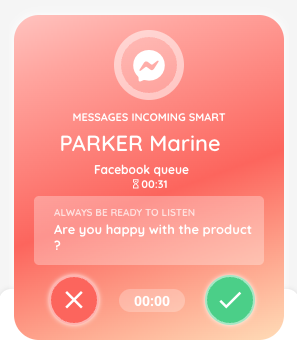
When a Messenger interaction is distributed to you, a notification popup appears. It shows:
- the interaction type and routing — shown as a title such as Messages Incoming Smart. The Messenger icon shown on the popup,
- the sender (the customer’s Messenger name),
- the queue name and, next to it, the time already spent waiting in that queue,
- transfer details, if the interaction reaches you through a transfer,
- the associated script, if one is attached and you have the right.
Between the cross and check buttons, a countdown shows the time you have left to decide before the interaction stops being presented to you. Accept the interaction with the Accept button, or decline it with Refuse. If your profile is configured for auto-accept, an “Acceptance in…” countdown accepts it automatically when it reaches zero.
3. Picking a Messenger message from the pool
You can also serve yourself from the pool instead of waiting to be presented an interaction:
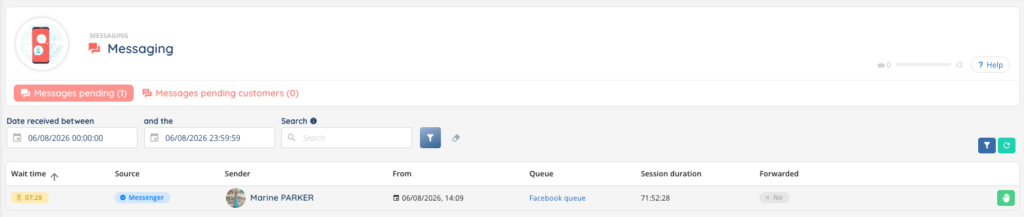
- Open the Messages pending tab.
- Spot the Messenger rows using the Source column (Messenger tag and icon).
- Click the hand button — Take this conversation — on the row you want.
The pool list shows, for each interaction: Wait time, Source (channel), Sender, From (reception time), Queue, Session duration and Forwarded status. The Session duration column shows a live countdown of the time left in the session window, not a fixed length. An interaction can only be handled by one advisor at a time: once you take it, it is yours until you close, end or quit it.
4. The Messenger conversation interface
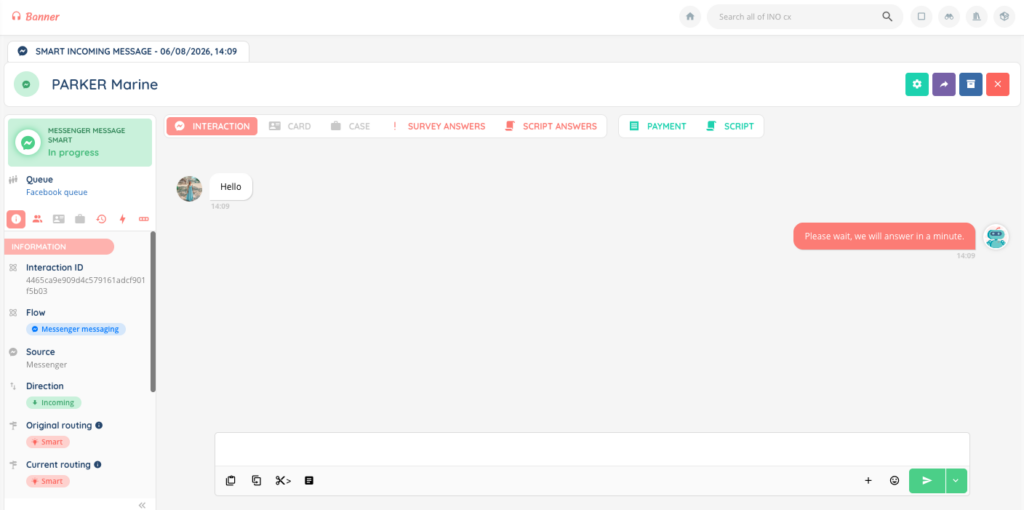
The conversation opens in the same interface used by the other messaging channels, organised in three areas: an info panel on the left, the central tabs (conversation, CRM card, case, script, and so on), and the reply area at the bottom.
The message thread shows:
- Customer messages, left-aligned;
- your advisor messages, right-aligned;
- Smart Routing automatic messages sent before the hand-off;
- system notifications (events on the interaction).
Messenger messages support file attachments, images, videos, audio and documents. Because Messenger applies its own limits, the maximum size per file depends on the type: 5 MB for images, 16 MB for audio and video, and 100 MB for documents, with up to 10 files per message. A single reply is limited to 1600 characters.
Note: Messenger supports read receipts, when you open a customer’s message, Messenger is notified that it has been seen. The live typing indicator is not surfaced. Messenger senders have a profile picture, shown as their avatar.
5. Available actions during the conversation
- Reply — type your message, attach files (from your computer or the documents centre), insert emojis, or send a private (advisor-only) message that the customer does not receive.
- Transfer — from Open the transfer options, route the conversation to a User, a Queue, a Smart Routing, or a Directory.
- CRM card and Case — from the Options menu, create or attach a CRM card or a case to the interaction.
- Payment — from the Options menu, request a secure payment (requires the billing/payment right).
- Custom buttons — any buttons your organisation has configured for interactions.
To finish the conversation, you have three distinct actions:
- Close — you have answered and are waiting for the customer; the interaction moves to Messages pending customers (see section 8).
- End — the exchange is over; the interaction is terminated and archived.
- Quit — you hand the interaction back; it returns to Messages pending in the queue it came from, for another advisor to take.
6. Conditional actions
These actions appear only when their conditions are met:
- Qualification — available when a qualification form is configured on the queue and you have the qualification right.
- Script — available when a script is attached to the interaction and you have the script right.
- Start video call — available when video call is enabled on the queue and you have the right. The customer receives a link in the Messenger conversation and joins the video call by opening it in their browser (the call runs as a web session, not inside Messenger).
7. The session window
Because Messenger is asynchronous, a conversation is kept alive for the duration of a session window configured on the Facebook page. The window is reset every time the customer sends a new message. Its length is set per page, up to a maximum of 72 hours (3 days).
The time remaining before the window expires is shown as a live countdown in the Session duration column of the pool (despite its name, the column displays the time left, not the configured length). If the customer sends nothing before the window expires, the interaction is closed automatically. When the customer writes again after that, a new interaction is created and routed again through Smart Routing.
8. Messages pending customer reply
When you Close a Messenger conversation while waiting for the customer, it leaves your active interactions and moves to the Messages pending customers tab. As soon as the customer replies, within the session window, it comes back automatically to Messages pending, ready to be picked up and continued.
9. Notifications
Sound and visual notifications for the messaging flow are configurable in your user notification settings. For Messenger (as for the other messaging channels), you can be alerted:
- When a message arrives in one of your active conversations;
- When a new message arrives in a queue;
- When a message exits a queue;
- when the messaging has just ended;
- when a participant has left the messaging.