

[Reading time: 7 minutes]
Overview
Chat is a real-time, synchronous messaging channel: the visitor and the agent converse live, similar to an instant messaging exchange. This distinguishes it from other messaging channels (SMS, WhatsApp, Telegram, Messenger), which operate asynchronously.
This article focuses on how chats are handled in the Banner’s messaging pool: how they arrive, what the agent sees, and the actions available during and after a conversation.
For features common to all messaging channels, see Messaging pool in the Banner. For setting up the chat plugin on a website, see The chat plugin – Set it up on your website.
1. How a chat arrives in the pool
1.1. Smart routing
This is the most common mode. When a visitor starts a chat on the website:
- The Smart Routing (Messaging IVR) handles the conversation first
- It can send automatic messages to the visitor (simple message, question, choice menu)
- It qualifies the interaction and distributes it to the appropriate queue
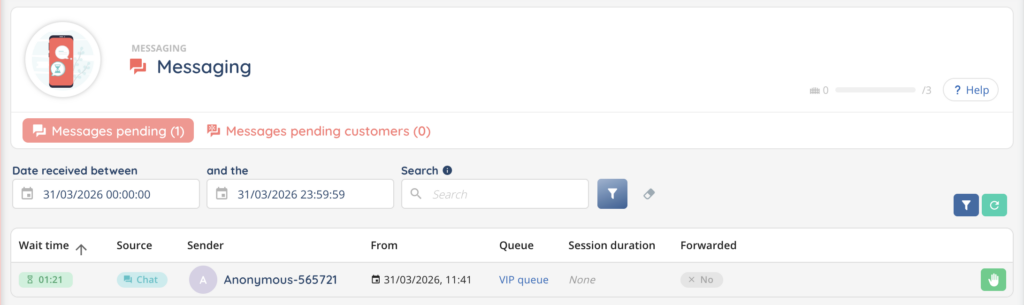
- The chat then appears in the pool under the Messages pending tab
In the pool list, chats routed via Smart Routing are identified by the label of the queue they are assigned to.
1.2. Direct routing
A chat using direct routing is sent straight to a specific agent, without going through a queue. It appears as an incoming popup in the Banner.
2. The incoming chat popup
When a chat is distributed to an agent, a notification popup appears in the Banner.
2.1. Popup content
| Element | Description |
|---|---|
| Interaction type | “Incoming Smart messaging interaction” or “Incoming Direct messaging interaction” |
| Origin | Visitor identity (if available) or anonymous identifier |
| Queue | Queue name (Smart routing only) |
| Wait time | How long the visitor has been waiting |
| Transfer | If the chat was transferred: agent name and transfer type (attended or blind) |
| Script | First node of the associated script (if enabled on the profile) |
2.2. Popup color
| Color | Routing type |
|---|---|
| Raspberry red | Smart routing or Campaign |
| Ocean blue | Direct routing (Contact type) |
2.3. Accept or decline
Two buttons are available at the bottom of the popup:
- Accept (check icon): the agent takes over the conversation. It moves to their active interactions.
- Decline (cross icon): the agent declines. The conversation returns to distribution.
A countdown is displayed in the popup, indicating the remaining time to accept before the chat is automatically redistributed.
2.4. Auto-accept
If the agent’s profile is configured with auto-accept, the popup appears briefly with a countdown and the chat is accepted automatically without any action from the agent.
2.5. Preview mode
Some configurations enable a preview mode: the chat is presented to the agent with a delay before it actually rings. This allows the agent to see what the conversation is about before having to respond. The popup displays the label “In preview”.
3. Picking a chat from the pool
If the agent does not receive a popup but chats are waiting in the pool, they can pick one up directly:
- Open the Messages pending tab in the messaging pool
- Identify rows with the chat icon in the channel column
- Click the hand button on the right side of the desired row
- The chat opens in the central panel of the Banner
A chat can only be picked by one agent at a time.
4. The chat conversation interface
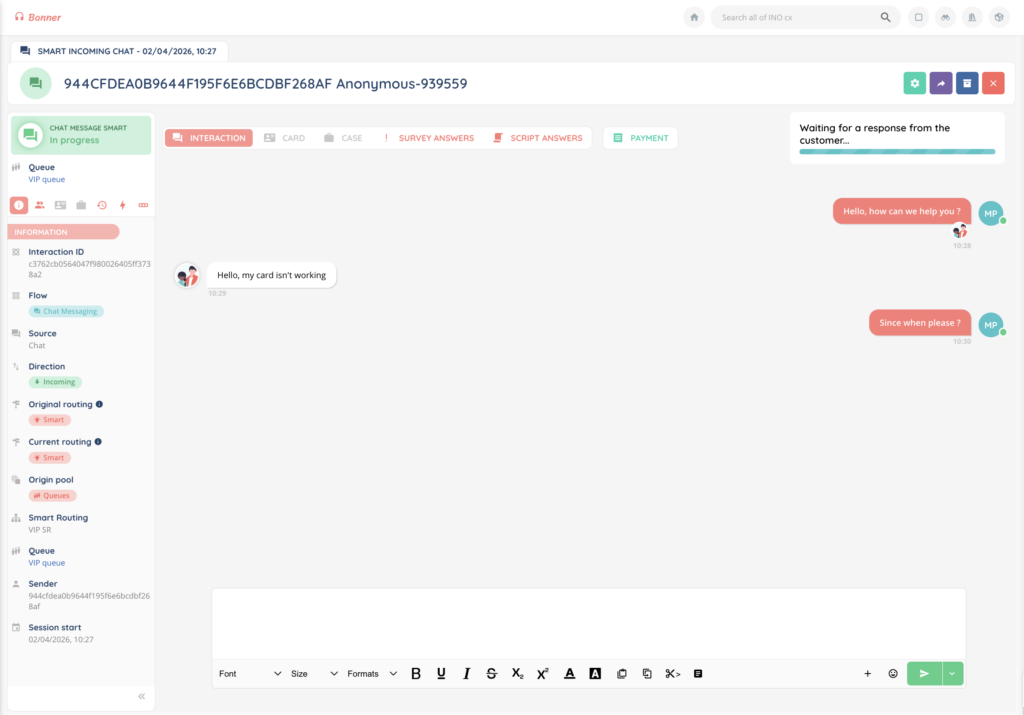
Once the chat is accepted or picked from the pool, the central panel displays the conversation.
4.1. Message types
| Type | Description |
|---|---|
| Visitor messages | Displayed as left-aligned bubbles |
| Agent messages | Displayed as right-aligned bubbles |
| Smart Routing messages | Automatic messages sent during the qualification phase |
| System messages | Event notifications (agent joined, conversation ended, etc.) |
4.2. Typing indicator
When the visitor is typing a message, a typing indicator appears in the conversation. The visitor also sees when the agent is typing.
4.3. Read receipts
Messages sent by the agent display an indicator when they have been read by the visitor.
4.4. File attachments
Visitors can send files from the chat widget. The agent sees them directly in the conversation. Supported file types include images, videos, audio files, and documents (PDF, Word, Excel, etc.).
5. Available actions during a conversation
The following actions are always available to the agent during a chat conversation. Other actions depend on the queue configuration and the agent’s profile permissions (see section 6).
5.1. Reply
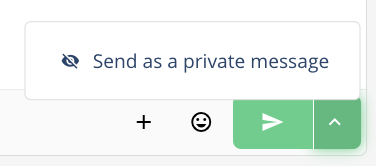
The agent types their response in the text area and sends it. Additional options include:
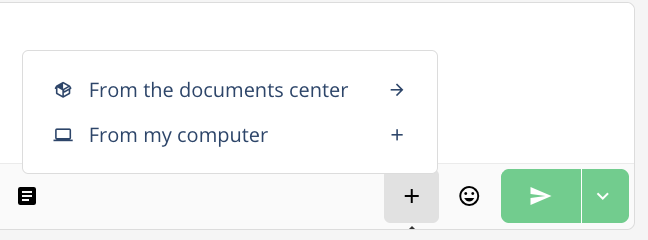
- Attach files
- Insert emojis
- Send a private message (visible only to agents, not to the visitor)
5.2. Transfer
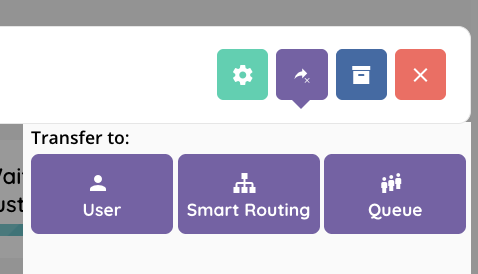
The agent can transfer the chat to:
- Another user directly
- A queue
- A Smart Routing (to re-qualify the interaction)
Only one transfer at a time is allowed. The transfer option requires the corresponding permission on the agent’s profile.
5.3. CRM and cases
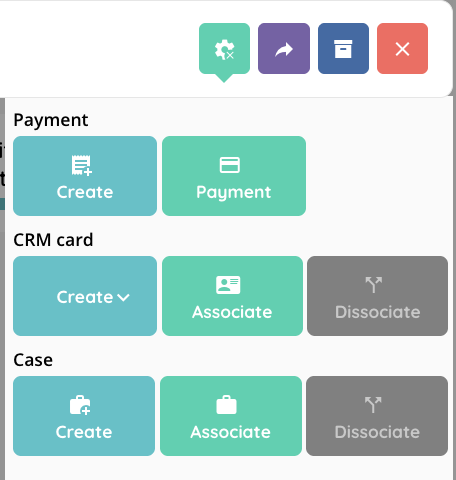
From the interaction’s cogged wheel menu, the agent can:
- Create or assign a CRM card
- Create or assign a case
- Trigger a secure payment
5.4. Close the conversation
The Archive button ends the conversation and moves it to post-processing status, then to history.
6. Conditional actions
The following actions are not available by default. They only appear if the corresponding option has been configured on the queue and the agent’s profile has the required permission.
6.1. Qualification
Allows the agent to start or complete a qualification form during the conversation. This option only appears if a qualification form has been configured on the queue and the agent’s profile has the corresponding permission.
6.2. Scripts
Allows the agent to run a sales or support script. This option only appears if a script has been attached to the interaction and the agent’s profile has the corresponding permission.
6.3. Video call
Allows the agent to offer a video call to the visitor from the interaction’s cogged wheel menu. This option only appears if the video call option is enabled on the queue and the agent’s profile has the corresponding permission.
If the visitor accepts, a video window opens. The agent can display the video in:
- Shared mode: video and chat are displayed side by side
- Full-screen mode: video fills the entire panel (chat is hidden)
7. Reconnection behavior
Since chat is a synchronous channel, a reconnection mechanism is in place:
- If the visitor closes their browser or loses their connection, a reconnection timer starts
- If the visitor reconnects before the timer expires, the conversation resumes normally
- If the timer expires without reconnection, the conversation is automatically closed
Note: if the associated queue has the freeze option enabled and the timer expires without a visitor response, the conversation switches to freeze mode (waiting for customer reply) rather than being closed immediately.
8. Messages pending customer reply
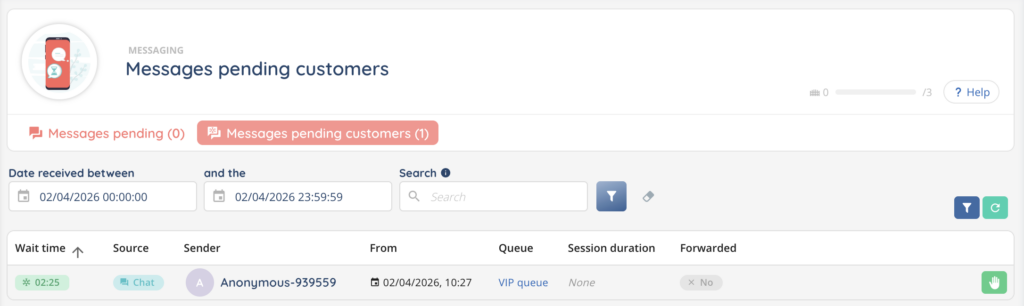
When a chat conversation is waiting for a visitor response (after an agent message or an automatic message), it can be moved to the Messages pending customers tab.
It stays there until the visitor replies, at which point it automatically returns to the Messages pending tab and the agent is notified.
Note: for chat, this mechanism is less common than for asynchronous channels (SMS, WhatsApp), since chat is real-time by nature. It mainly applies to configurations with freeze enabled.
9. Notifications
Chat notifications can be configured in Maker > User > Notifications.
| Notification | Triggered when |
|---|---|
| Message arrives | A new message from a visitor in an active conversation |
| Message in a queue | A chat arrives in a monitored queue |
| Messaging ended | The conversation is closed |
| Participant leaves | A participant leaves the conversation |
| Message exits a queue | The chat exits a queue |