

[Reading time: 6 minutes]
Overview
The chat plugin is a widget you can embed on any website to let your visitors chat in real time with your agents. It consists of a floating button that appears on your pages, and a chat window that opens when a visitor clicks on it.
This article covers the installation, configuration, and features of the chat plugin. For more details on configuring chat modules in the Maker, see Chat modules – How to use them. For managing conversations on the agent side, see the dedicated article on the chat pool.
Prerequisites
- Access to the Maker
- Your website’s domain must be declared in Client account settings > Security > Domain names
- A Messaging-type smart routing must be configured and associated with your chat module
1. Installing the plugin on your site
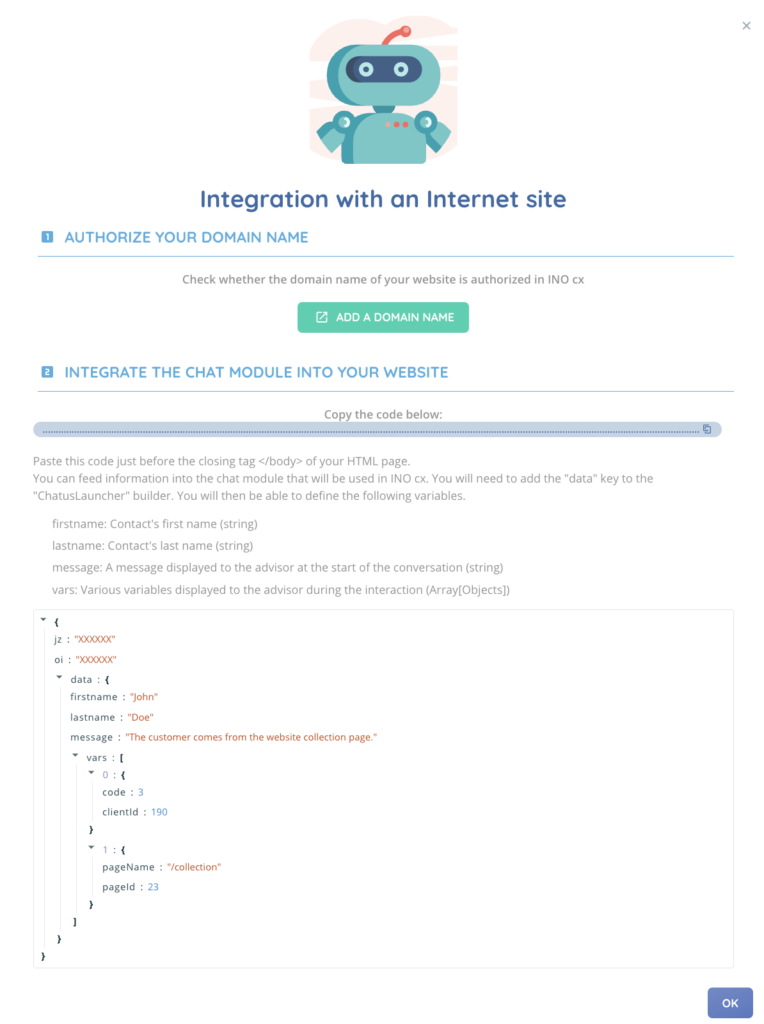
To install the chat plugin on your website:
- Open the Maker
- In the side menu, go to Entry point > Chat modules
- Select the desired chat module
- Click the Integration code button
- Copy the generated JavaScript snippet
- Paste it into your website’s HTML code
The required identifiers (domain, token, chat ID) are pre-filled in the generated code. No manual changes are needed.
Tip: if you are unsure where to place the snippet, share it with your web developer — it should be inserted just before the closing </body> tag.
2. The floating button
The floating button is the element your visitors see on your website. It is positioned at the bottom right of the page and allows visitors to open the chat window.

2.1. Available styles
Two button styles can be configured in the Maker:
| Style | Description |
|---|---|
| Simple | A round button with an icon. You can choose the background color and pick from four icon options (chat, comment, conversation, SMS). |
| Advanced | A wider banner featuring up to 3 customizable avatars, a tagline, and a button with text and icon. Avatars can be uploaded in the Maker or use the default images. |
2.2. Unread message notifications
When the chat window is closed and an agent sends a message, a notification badge appears on the button showing the number of unread messages (up to 99, then “+99”).
2.3. Mobile display
On mobile devices, the chat window automatically adapts to fill the entire screen.
3. Trigger strategies
Trigger strategies let you control when the chat button appears and when the chat window opens automatically. They are configured in the Maker and evaluated in real time in the visitor’s browser.
Two types of display behaviors can be configured for each strategy:
| Behavior | Description |
|---|---|
| Displaying the chat icon | The floating button appears on the visitor’s page when the strategy conditions are met. |
| Opening the entire chat | The chat window opens automatically when the strategy conditions are met. |
If no strategy is configured, the button is displayed by default.
For a complete guide on creating and configuring trigger strategies, see Trigger strategies – Set them up.
4. Conversation continuity
The plugin automatically preserves the conversation state as the visitor navigates between pages on your site. If a visitor reloads the page or goes to another page on the same site, the conversation picks up where it left off.
Visitors are identified for 30 days, which also allows them to access their past conversation history.
When a conversation ends or a connection error occurs, the session is automatically reset.
5. Sending messages and files
Visitors can send text messages from the input field in the chat window. Messages are delivered to agents in real time.
The plugin also supports file attachments with the following limits:
| Category | Accepted formats | Max size |
|---|---|---|
| Documents | ZIP, GZIP, RAR, PDF, DOC, DOCX, XLS, XLSX, PPT, PPTX | 100 MB |
| Images | JPEG, PNG, GIF, BMP, SVG | 16 MB |
| Videos | MP4, AVI, WebM, OGG | 16 MB |
| Audio | MP3, WAV, OGG | 16 MB |
Up to 10 files can be sent at once.
6. Conversation history
The plugin includes a history screen accessible from the chat window. Visitors can browse their past conversations from this screen.
7. Sending the transcript by email
If the Auto email sending setting is enabled on your chat module, visitors can request to receive the full conversation transcript by email. A prompt appears in the chat window with an input field for the email address.
8. Short link (direct access)
Each chat module has an automatically generated short link, visible in the module settings (non-editable field). This link opens the chat in full-screen mode without embedding it on a website.
This is useful for:
- Sharing a direct chat link via SMS
- Embedding a chat link in an email
- Providing quick access without web integration
Tip: when the short link is used in an SMS campaign, the system can automatically pass through the campaign target data.
9. Security
The plugin includes several security mechanisms:
| Mechanism | Description |
|---|---|
| Domain control | Every request verifies that the origin domain is among the authorized domains for your account. This is why declaring your domain in the security settings is essential (see Prerequisites). |
| Chat window isolation | The chat window is fully isolated from your website, ensuring that your site and the widget do not interfere with each other, and that conversation data remains protected. |
10. Advanced integration (developers)
The section below is intended for developers looking to customize the plugin’s behavior.
Passing custom data
Your website can pass contextual data to the plugin during initialization. This data will be visible to agents in the agent toolbar.
window.ch_Chatus = new ChatusLauncher({
  jz: "<customerToken>",
  oi: "<chatUuid>",
  data: {
    firstname: "John",
    lastname: "Doe",
    message: "Need help with my order",
    vars: [
      { key: "orderId", value: "ORD-12345" },
      { key: "customerType", value: "Premium" }
    ]
  }
});| Parameter | Type | Description |
|---|---|---|
firstname | string | Visitor’s first name |
lastname | string | Visitor’s last name |
message | string | Contextual message displayed to agents |
vars | array | Additional key/value variables accessible by agents |