

[Reading time: 4 minutes]
Overview
The Sentiment analysis feature provides an automatic evaluation of the emotional tone of a recorded conversation. When available, it adds a dedicated Sentiment tab to the recording detail view, alongside color-coded markers on the audio waveform.
Sentiment analysis is part of the transcription: it requires transcription, but is enabled separately. You turn it on with its own option on the distribution queue or voice campaign, it is not generated automatically. A further option controls whether sentiment markers are also shown on the audio waveform. For more details on enabling transcription, see the article transcription tab in Recordings.
Prerequisites
- A Smart license.
- Access recordings permission enabled in the user profile.
- Transcription enabled on the distribution queue or voice campaign (set to Pre-recording).
- Sentiment analysis enabled on the distribution queue or voice campaign (a separate option from transcription).
- The recording must have been successfully processed by transcription (status: Completed).
- The recording must be in a supported language: English, French, Spanish, or Portuguese.
1. Sentiment tab
When sentiment analysis data is available, a Sentiment tab appears next to the transcription tab. It is identified by a smiley icon. This tab provides a summarized view of the emotional tone of the conversation.
1.1. Accessing the tab
- Open a recording (from Quality Management or History of interactions).
- Click the Sentiment tab in the tab bar on the right side.

1.2. Sentiment overview
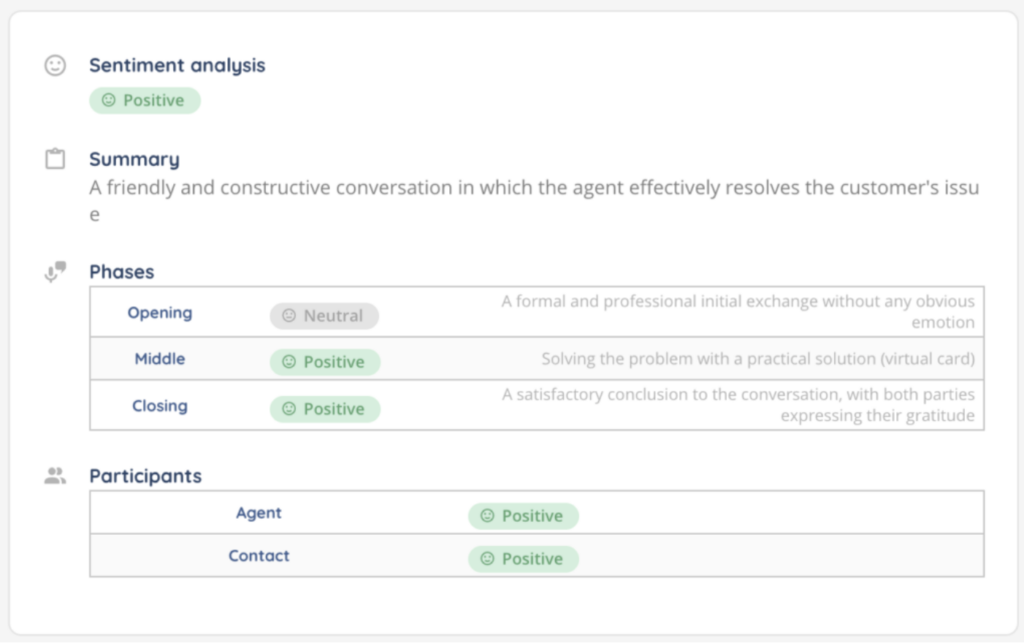
The overall sentiment of the conversation is displayed at the top of the tab as a color-coded tag:
| Sentiment | Color | Icon |
|---|---|---|
| Positive | Green | Happy face |
| Mostly positive | Green | Happy face |
| Neutral | Grey | Neutral face |
| Mostly negative | Orange | Frown face |
| Negative | Red | Frown face |
1.3. Summary
A text summary describes the overall tone and key takeaways of the conversation. This summary is generated automatically and gives supervisors a quick understanding of the interaction without having to listen to the full recording.
1.4. Phases
The sentiment is broken down into three conversation phases:
| Phase | Description |
|---|---|
| Opening | The beginning of the conversation (greeting, introduction). |
| Middle | The core of the conversation (problem resolution, discussion). |
| Closing | The end of the conversation (wrap-up, farewell). |
Each phase shows its own sentiment tag and, when available, a reason explaining the sentiment detected during that phase.
1.5. Participants
The sentiment is also displayed per participant:
| Participant | Description |
|---|---|
| Advisor | The sentiment detected for the advisor throughout the conversation. |
| Contact | The sentiment detected for the customer/contact throughout the conversation. |
2. Waveform sentiment indicators
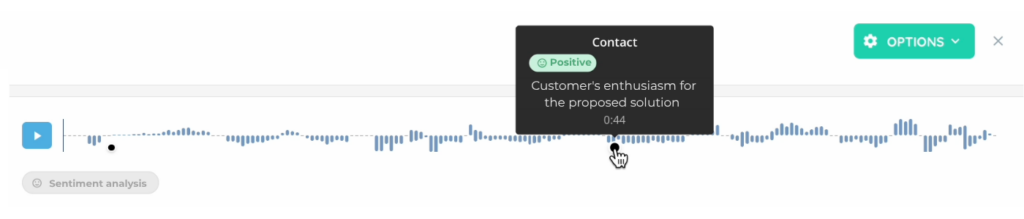
When sentiment analysis data is available, sentiment markers are displayed directly on the audio waveform player at the top of the recording detail view. These markers appear as color-coded zones overlaid on the audio timeline.

Note: Waveform sentiment markers require the sentiment analysis by segment option to be enabled on the queue or campaign, in addition to sentiment analysis.

2.1. Color-coded markers
| Color | Meaning |
|---|---|
| Green | Positive or mostly positive sentiment segment. |
| Orange | Mostly negative sentiment segment. |
| Red | Negative sentiment segment. |
Note: Neutral segments are not displayed on the waveform to keep the visualization focused on noteworthy sentiment changes.
2.2. Tooltip details
Hovering over a sentiment marker on the waveform displays a tooltip with:
- The speaker (advisor or contact).
- The sentiment tag with its icon.
- The reason for the sentiment (if available).
- The timestamp in the recording.
2.3. Visibility toggle
You can toggle the sentiment lane visibility directly from the waveform player. The transcription tab transcription will also reflect this visibility setting — when sentiment markers are hidden on the waveform, sentiment indicators on the message bubbles are also hidden.