[Reading time: 3 minutes]
Overview
Transcription provides automatic analysis of call recordings.
When enabled, it processes voice interactions to produce:
- A written transcription of the conversation, displayed as message bubbles per speaker (advisor and contact).
- Entity detection: keywords and named entities are highlighted in the transcription (persons, locations, organizations, phone numbers, dates, prices, etc.).
- Sentiment analysis(optional): when enabled on the queue or campaign, an overall sentiment score for the conversation, broken down by phase (opening, middle, closing) and by participant (advisor, contact). Read the related article here.
Transcription runs in pre-recording mode: the analysis is performed after the call ends, once the recording is available. It is only available when the recording is in stereo.
Once generated, the results are accessible from the Recordings module (Quality Management) via two dedicated tabs: Transcription and Sentiment.

Prerequisites
- A Smart license.
- Access recordings permission enabled in the user profile.
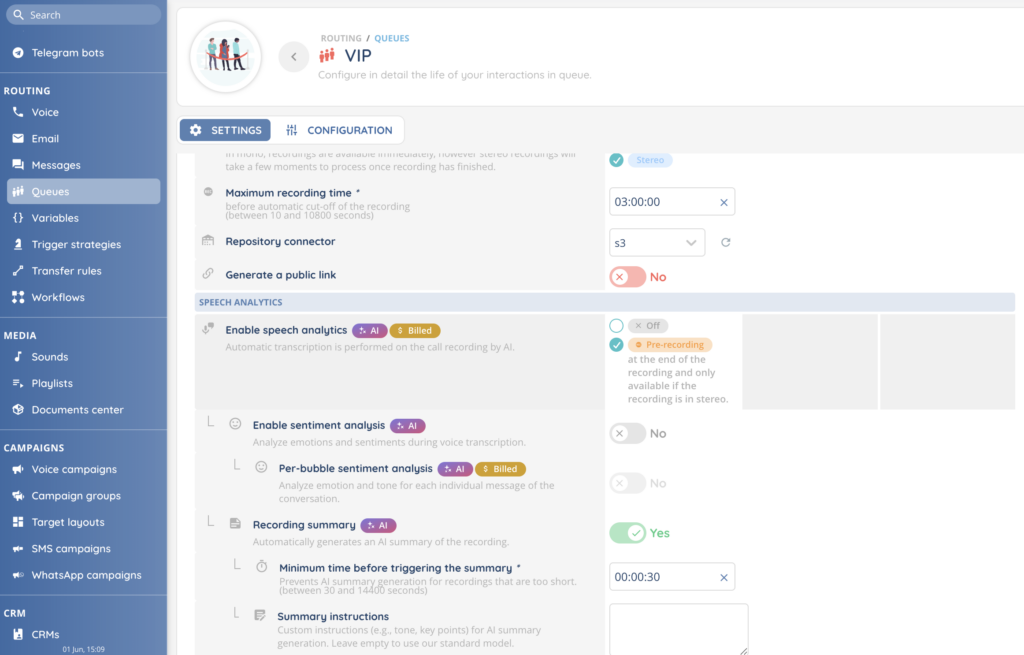
- Transcription enabled on the distribution queue or voice campaign (set to Pre-recording).
- For Pre-recording mode: the distribution queue must have stereo recording enabled.
1. Enabling Transcription
Transcription is configured at the distribution queue (or voice campaign) level in the Maker.
- In the Maker, navigate to the desired distribution queue.
- In the Option section, locate the Transcription settings.
- Configure the Enable transcription field:
| Option | Description |
|---|---|
| Off | Transcription is disabled. No transcription or analysis will be generated. |
| Pre-recording | Analysis is performed at the end of the recording. Only available if the recording is in stereo. |
2. Transcription tab
When a recording has transcription data, the transcription tab appears in the recording detail view, alongside the Recording and Evaluations tabs.
2.1. Accessing the tab
- Open a recording (from Quality Management or History of interactions).
- Click the transcription tab in the tab bar on the right side.
2.2. Transcription display
The tab displays the full conversation transcription as message bubbles, similar to a chat conversation. Each message shows the speaker (advisor or contact) and the transcribed text. Detected entities are highlighted inline within the text — hovering over a highlighted entity reveals its type and additional metadata.
2.3. Detected entity types
The following entity types can be detected and highlighted in the transcription:
| Entity type | Description |
|---|---|
| Person | Names of people mentioned in the conversation. |
| Location | Geographic locations, cities, countries, etc. |
| Organization | Company names, institutions, etc. |
| Event | Named events. |
| Work of art | Titles of works (books, films, etc.). |
| Consumer good | Product or brand names. |
| Other | Other named entities that don’t fit the categories above. |
| Phone number | Phone numbers mentioned in the conversation. |
| Address | Postal addresses. |
| Date | Date references. |
| Number | Numerical values. |
| Price | Monetary amounts. |
2.4. Processing states
Depending on the status of the analysis, you may see different states:
| State | Message displayed |
|---|---|
| Pending | “transcription pending” — The analysis is still in progress. A Refresh button allows you to check for updates. |
| Completed | The full transcription is displayed with entity highlights and sentiment indicators. |
| Empty | “Unable to start transcription for this call.” — No transcription data is available for this recording. |
3. Downloading the transcription
You can download the transcription of a recording for external use.
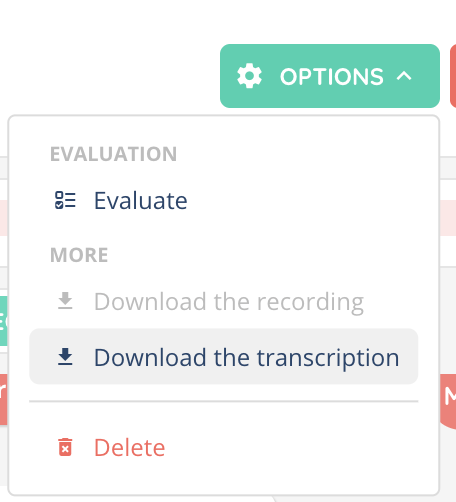
- From the recording detail view, click the cogged wheel button.
- Select Download the transcription.
From the interface, the transcription is exported as a plain text file containing the full conversation. Two formats are available through the API:
| Format | Description |
|---|---|
| All conversation | Returns the full text content without dates or speaker names. A line break indicates a change of speaker. |
| All conversation details | Returns the full conversation using the format: “Last name First name – Date (hh:mm dd/mm/yyyy): message”. |
Note: The transcription export is limited to 20,000 characters.