
[Reading time: 2 minutes]
Overview
This article explains how user authentication works in INO cx, the different reconnection and disconnection scenarios, and the prerequisites required to ensure a stable connection.

1. Authentication
1.1. Login
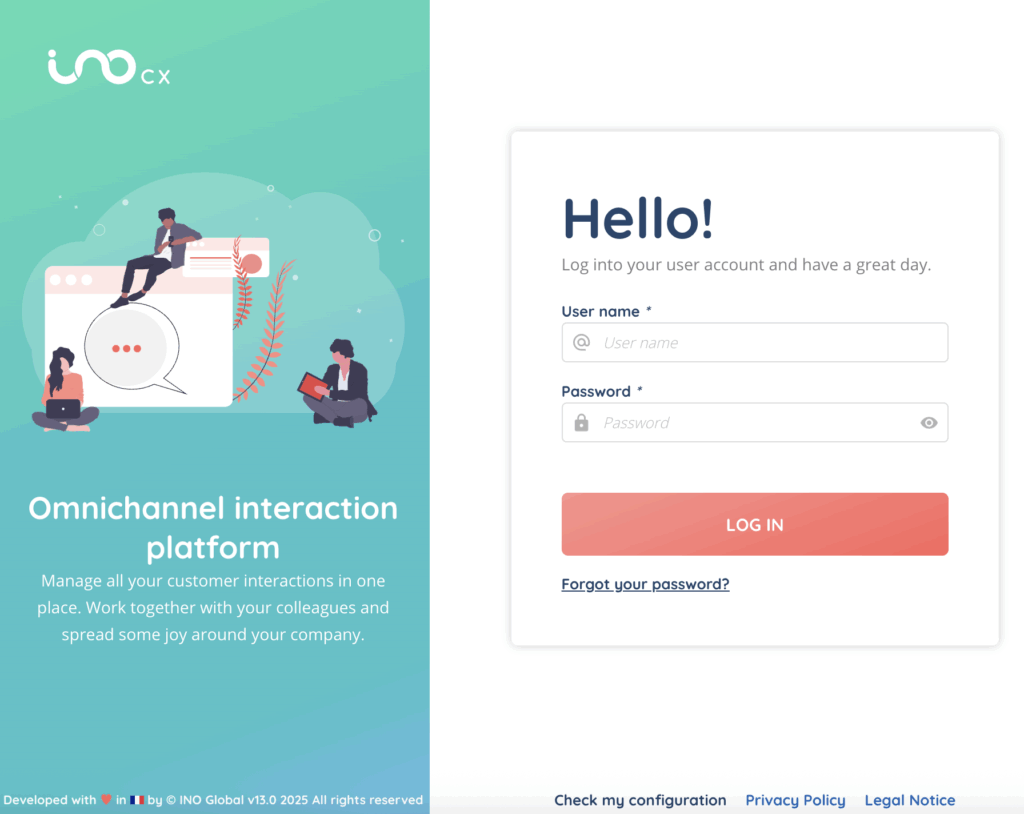
To sign in to INO cx, users must have an active account with a username and password. When a new account is created, the user receives an email to set up their password and confirm their account.
If the user has not confirmed their account, an activation link can be resent. This action requires the modification of users permission in the Maker (role).
1.2. Password expiration
In the Maker, within the customer account settings, administrators can enable Password expiry and configure a password expiry timeout between 30 and 365 days.
If enabled, users will be required to create a new password once the configured duration has been reached.
1.3. Invalid password
Users may attempt to sign in up to 10 times. After 10 invalid attempts, the password must be reset.
The user can click Forgot password to receive an email with a reset link.
Another user with the appropriate rights can also send the reset link manually from the Maker:
Maker > Users > Gear icon next to the user > Reset the password for v4
The reset link is valid for 2 hours.
1.4. User already connected
A user who is already signed in cannot log in again from another computer or from another session on the same computer at the same time.
1.5. End of trial period
If the customer account has reached the end of its trial period, users will not be able to sign in.
2. Disconnections
If the user signs out from one browser tab, all open tabs will be logged out simultaneously.
A supervisor can disconnect a user directly from the Banner in the Supervision module.
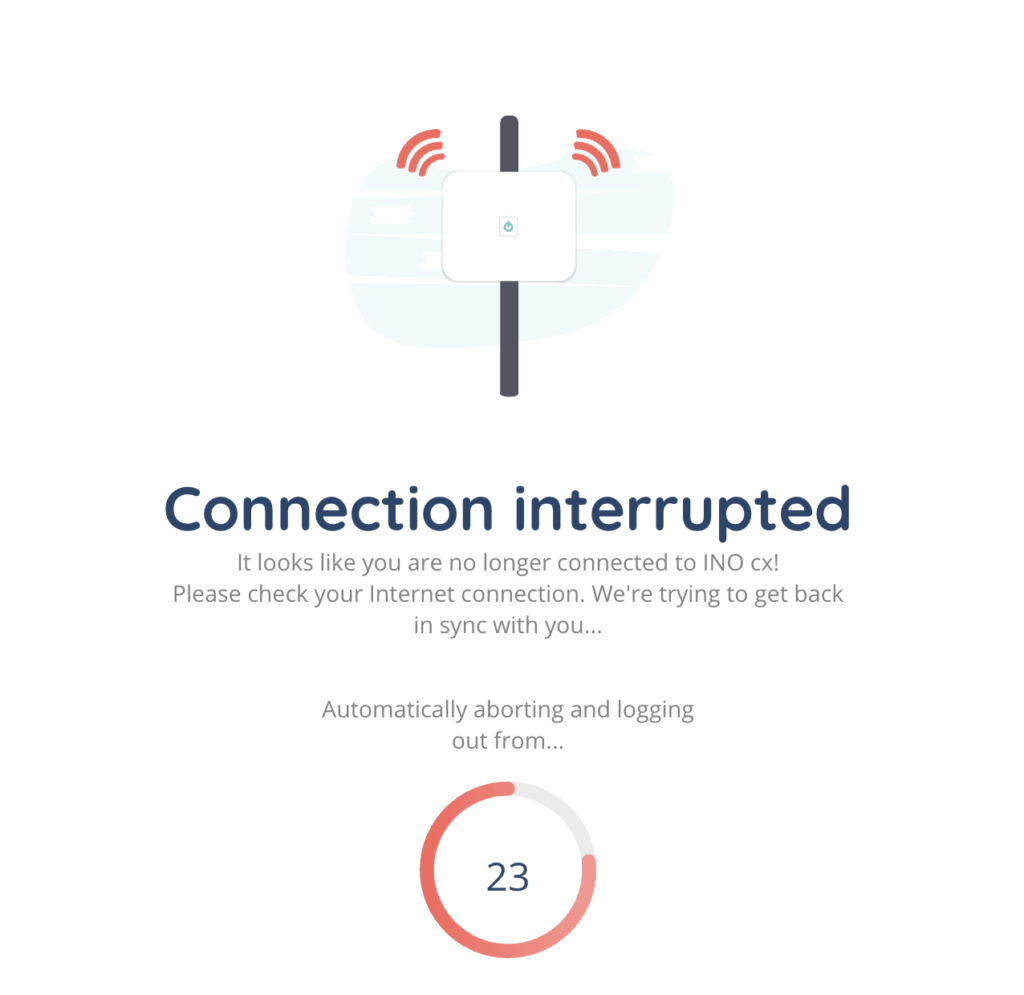
If the network connection is unstable, the Banner will attempt to reconnect for up to 30 seconds. If reconnection fails, the user is logged out.
In the Maker, a small indicator (green, orange, or red) displays the current connection status.

3. Prerequisites
A direct link on the login page (at the bottom) allows users to Check my configuration, which runs several diagnostic tests grouped in four sections.
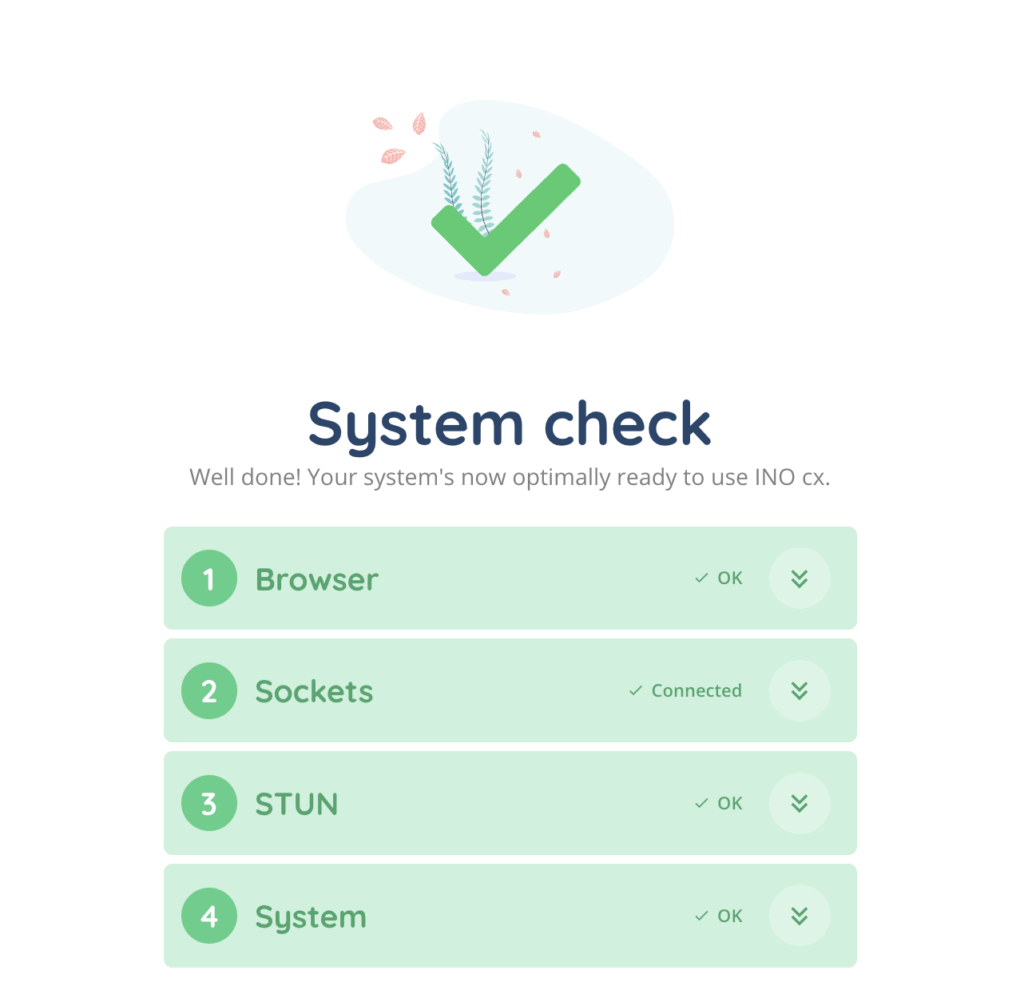
3.1. Browser
Checks cookies, pop-ups, screen resolution, local storage availability, and more.
3.2. Sockets
Displays the connection status with the connected date and time.
3.3. STUN
Runs STUN connectivity tests.
3.4. System
Shows CPU core count, estimated network latency, available memory (GB), and other system metrics.
Users can download the diagnostic report, which includes WebSocket logs and statuses.
A Re-check option is also available.
⚠️ Please ensure that all prerequisites are met. The detailed list is available here: Chrome and WebRTC prerequisites.