

[Reading time: 2 minutes]
Overview
The Scenarios module in Reporter allows you to schedule automatic and dynamic displays of multiple INO cx dashboards or explorations (only the KPIs will be displayed).

It is a useful tool for creating sequences of visualizations, for example on a control room screen, that updates automatically.
1. Rights
To create a Scenario, you must have the following rights in the Maker (in the role, Reporter tab):
- Access to the Scenarios module
- Create permission for a Scenario
Once the rights are granted:
- Go to the Reporter
- Open the Scenarios module
2. Scenario list
When you access the module, you will see the list of existing Scenarios.
Features in the list view:
- Search bar – search by scenario name
- Scenario name
- Rights:
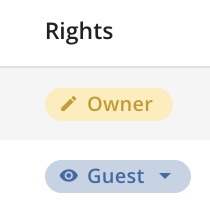
- Guest – can view the history and open the Scenario, but cannot edit it
- Owner – can edit, delete, launch, and manage user access
- Number of users with access (owners + guests)
Available actions:
- Start a Scenario (only available if at least one scene exists inside)
- Open the Scenario (arrow icon)
- View history (cogwheel icon)
- Edit (pencil icon – owners only)
- Delete (trash icon – owners only)
Guests can only open a Scenario, view its history, and start it.
3. Inside a Scenario
Opening a Scenario displays two tabs:
- Settings
- User rights
3.1 Settings tab
This is where you define the content and sequence of your Scenario.
- Add a scene – click this button to insert dashboards and/or explorations.
- Scenario total duration – displayed at the top center, showing the sum of all scene display times.
- Repeat scenario – toggle to restart the sequence automatically after the last scene.
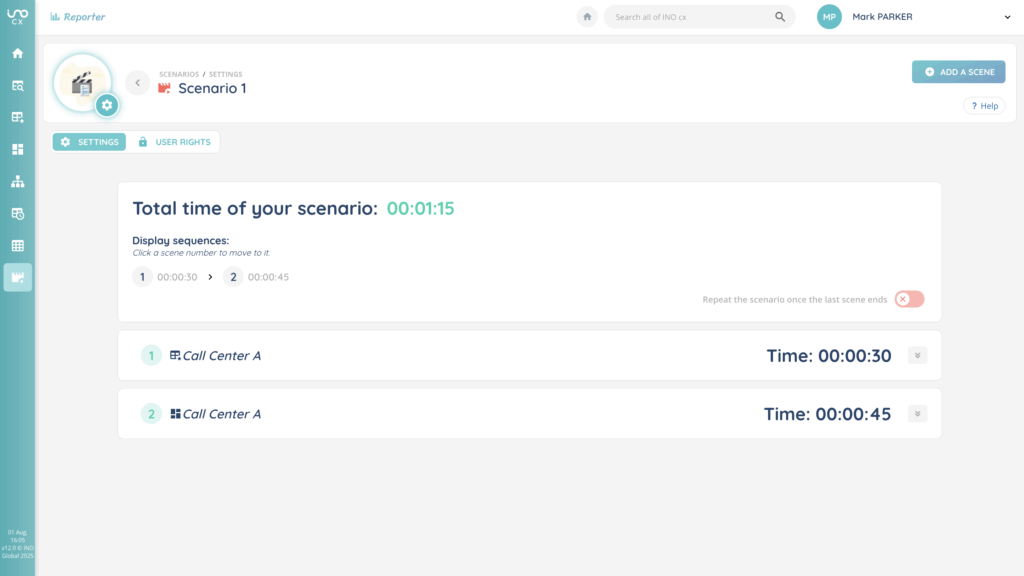
Scenes
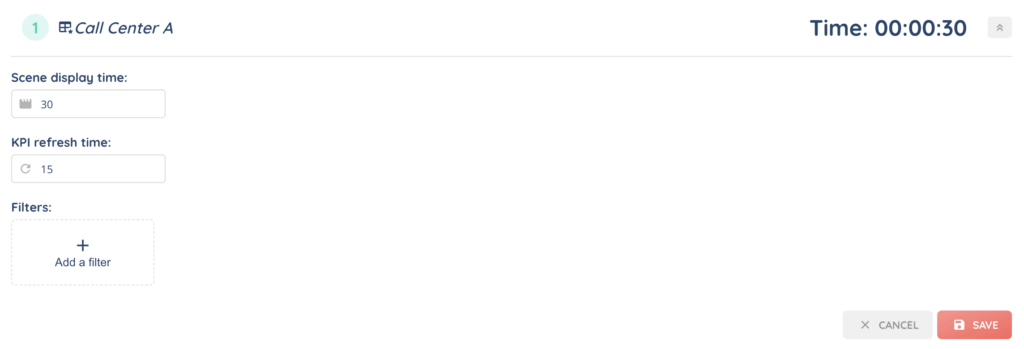
Each scene has its own configuration:
- Display time – how long the scene will remain on screen
- KPI refresh time – how often KPIs update within the scene
- Filters – apply filters to the scene’s content
- Edit – modify a specific scene
- Delete – remove a scene
Owners can:
- Add, edit, and delete scenes
- Change the scene order using drag-and-drop
- Enable/disable scenario repetition
Guests can:
- View the list of scenes and their details (display time, KPI refresh time, filters)
- They cannot add, edit, delete, reorder scenes, or change the repeat setting.
3.2 User rights tab
This tab manages access to the Scenario.
- Search bar – find users by name
- Add a user – new users are added as guests by default
- Change role – switch a user from guest to owner
- Remove user – revoke access
Only owners can manage user rights.
4. Launching a Scenario
Once at least one scene is configured, owners and guests can start the Scenario.
When the Scenario is launched:
- The sequence opens with all KPIs from the selected dashboards/explorations.
- A progress bar under each KPI shows the time remaining before its refresh.
- At the top of the screen, another progress bar indicates how much time is left before switching to the next scene (with all its KPIs).
- Two buttons at the top allow you to:
- Switch to full-screen mode
- Jump directly to the next scene
- Next to each KPI, the source exploration is displayed.