

[Reading time: 3 minutes]
Overview
The Explorers module in Reporter allows you to visualize statistics from Smart Routings (SR) — whether in production or in back-up — in an interactive diagram format.

It is a data visualization tool that makes it easier to analyze the paths and actions performed within a Smart Routing.
1. Rights
To create an Explorer, you must have the following rights in the Maker:
- Access to the Explorers module in your role (Reporter tab)
- Create permission for an Explorer
Once an Explorer is created, its creator automatically becomes an owner.
You can create an Explorer even if the Smart Routing is in back-up.
2. Accessing the module
- Open the Reporter.
- Select the Explorers module.
You will see the list of existing Explorers.
3. Explorer list
Each line in the list shows the following information:
- Name of the Explorer
- Link to the associated Smart Routing
- Smart Routing type: voice, messaging, or email
- Rights:
- Guest – can view the Explorer and see its history
- Owner – can edit, delete, and manage user rights
- Number of users with access (owners + guests)
Available actions from the list
- Open the Explorer (arrow icon)
- View history (cogwheel icon)
- Edit (pencil icon) – owners only
- Delete (trash icon) – owners only
4. Explorer layout
When you open an Explorer, the screen is divided into three sections:
- Left panel – Information and statistics for the entire Smart Routing
- Central area – Smart Routing diagram
- Right panel (only if you open it) – Information and statistics for a selected action
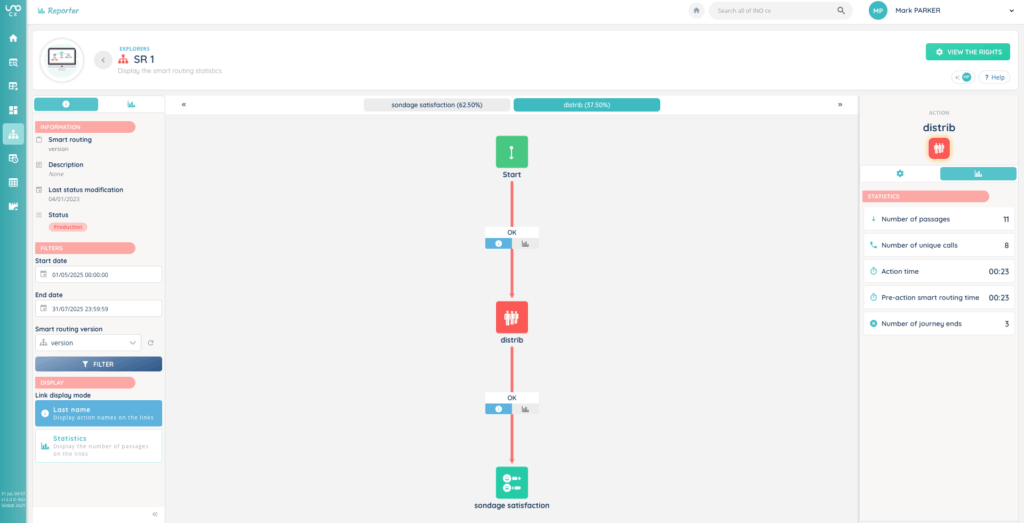
You can also switch it to full screen display.
4.1 Left panel – Entire Smart Routing
This panel contains two tabs:
Information
- Version of the Smart Routing
- Description (optional)
- Last status change (DD/MM/YYYY)
- Status: Production, etc.
Filters:
- Period (start and end dates)
- Smart Routing version
Display:
- Name – shows action names on the links
- Statistics – shows the number of transitions on the links
Statistics
Indicators vary depending on the Smart Routing type:
- Voice
- Number of calls
- Number of calls/time (chart)
- Number of callers
- Average Smart Routing time
- Distributed call rate
- Messaging
- Number of messaging sessions
- Number of messaging sessions/time (chart)
- Number of senders
- Average Smart Routing time
- Rate of distributed messaging sessions
- Email
- Number of emails
- Number of emails/time (chart)
- Number of senders
- Average Smart Routing time
- Distributed email rate
4.2 Central area – Smart Routing diagram
The diagram shows the different steps and actions of the Smart Routing.
- Links between actions can display either the action names or the number of passages into action, depending on the selected Display mode.
- A percentage for each action
4.3 Right panel – Action details
To open the right panel, click on:
- The action name above the percentage in the diagram
- Or directly on the action in the diagram
This panel contains two tabs:
- Information (cogwheel icon) – details about the action (queue, playlist, survey, etc.). If applicable, a direct link to the Maker allows you to open the related configuration (e.g., queue distribution, survey form…).
- Statistics – indicators specific to the selected action. Statistics vary depending on the action type.
5. Managing access rights
At the top right, the View the rights button lets you:
- Add new users (owner or guest) using a search bar
- Modify existing rights
Only owners can change user rights.