
[Reading time: 2 minutes]
Overview
WhatsApp campaigns allow you to send personalized messages at scale, while benefiting from INO cx features for tracking and managing responses.
Outgoing WhatsApp numbers
Before creating a campaign, you need to configure at least one outgoing WhatsApp number in the WhatsApp numbers module, under the Outgoing WhatsApp numbers tab.
A button is available to simplify the addition of a new number. The integration process with Meta is partially automated in INO cx.
See the dedicated article WhatsApp numbers – Set them up for more information.
Creating a WhatsApp campaign
Go to the WhatsApp campaigns module to create your campaign.
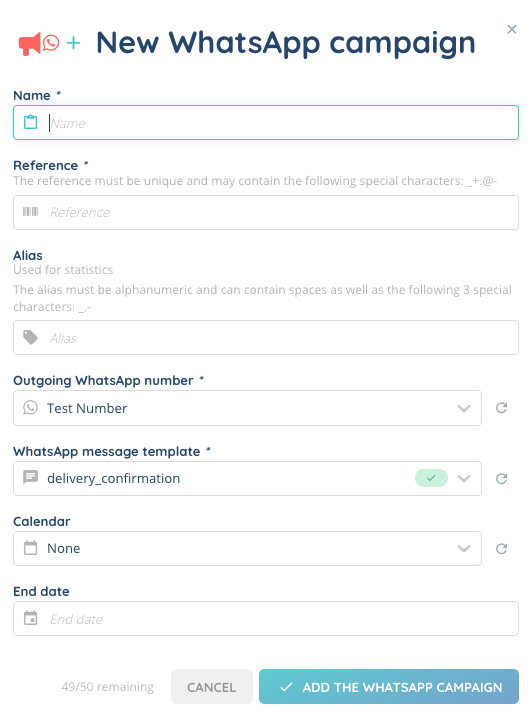
Once created, you can open and manage your campaigns:
- Import/export targets
- Manage target templates
- Reschedule a campaign
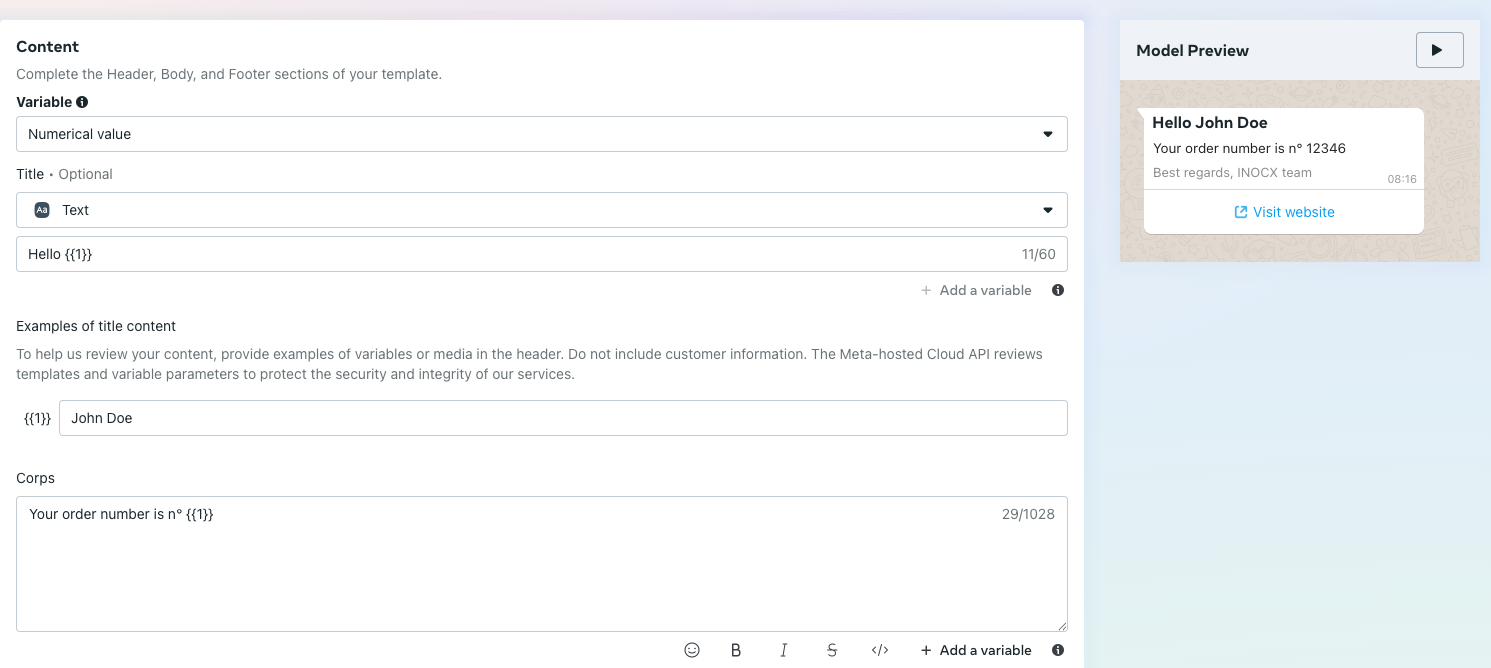
⚠️ Message templates (content, title, buttons) must be created and approved directly in Meta Business Manager.
Message personalization
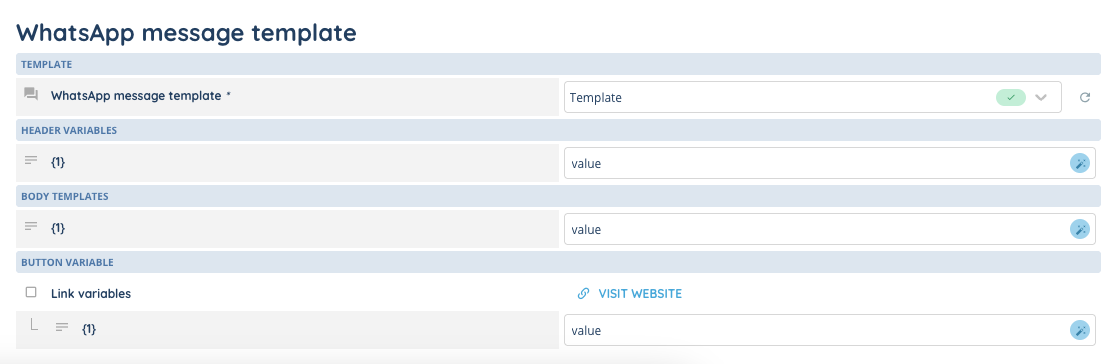
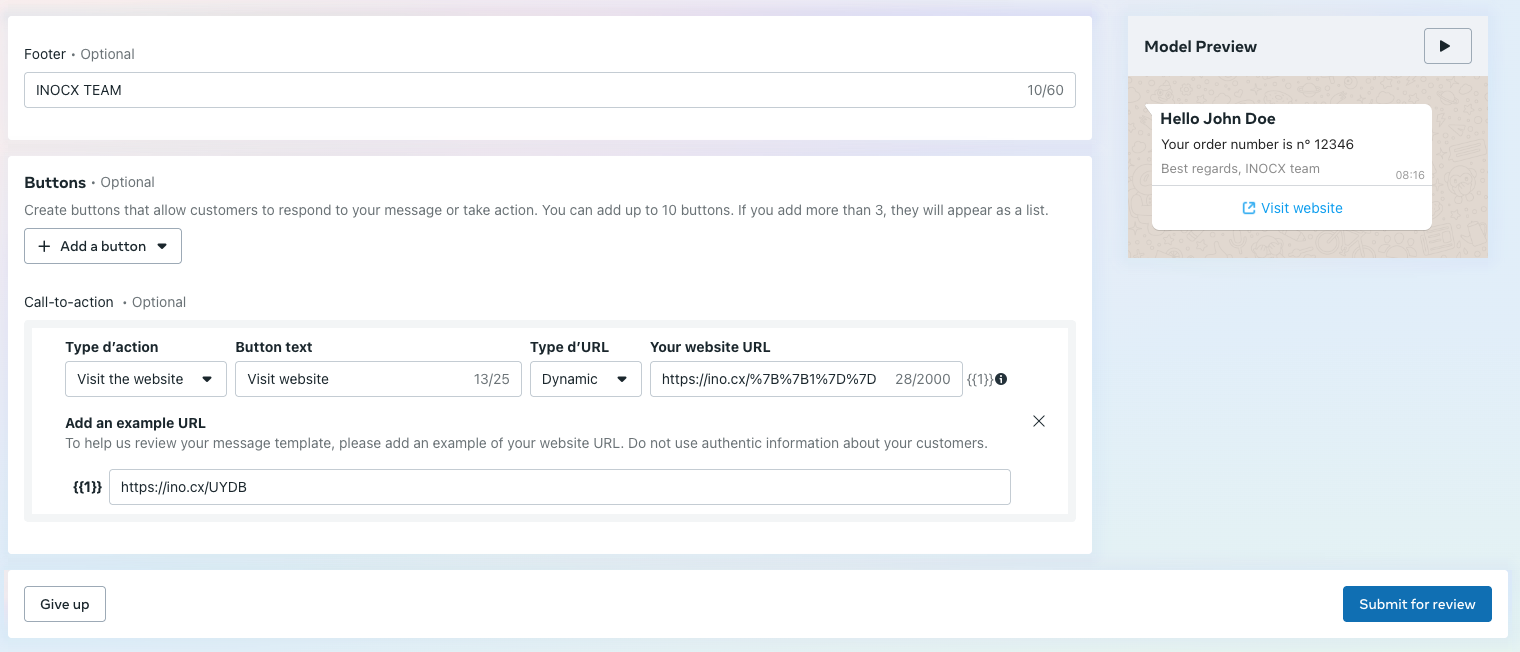
You can use variables in the following elements:
- Message title
- Message content
- Buttons (URL links)
Linking a calendar
Each campaign can be associated with a calendar to define the time slots during which messages will be sent.
Replies
You can configure a Smart Routing of response to define how replies to a campaign are handled.
Customer replies appear in the messaging pool and benefit from all the usual features.

Launch the campaign
You can launch the campaign directly from the Maker by setting it to “ON.”
Remember to add it to the desired profiles.
If “manage the campaign” in the profile is set to ON, the user will be able to manually switch the campaign to ON or OFF from the banner.
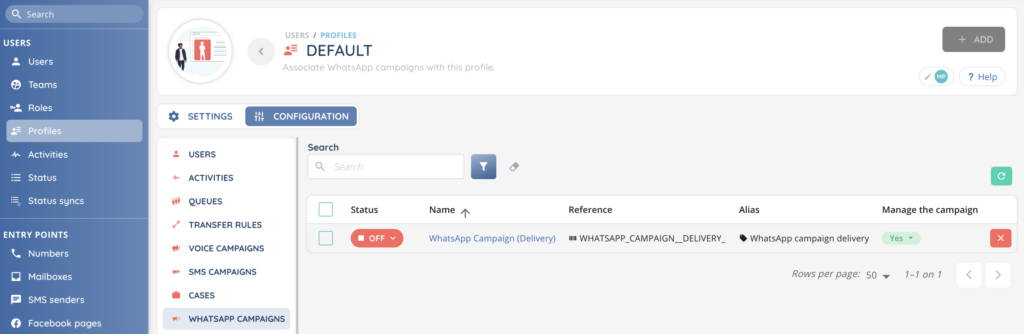
Now you can use them in the Banner !
Campaign reporting
Two new data sources are available in the Reporter:
- Attempts: message sending attempts
- Targets: list of recipients linked to a campaign