

[Reading time: 2 minutes]
Overview
Target layouts allow you to define custom data structures that can be reused across different channels. Once configured, they can be used in voice campaigns, SMS campaigns, and WhatsApp campaigns to display structured information.
This article explains how to create, manage, and configure target layouts.
1. Accessing target layouts
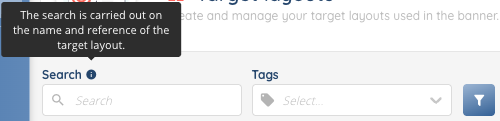
The Target layouts module in the Maker displays the list of existing target layouts.
At the top of the page, a search bar allows you to search target layouts by name or reference.
You can also filter target layouts using tags.
2. Creating a target layout
To create a new target layout, click the Create button.
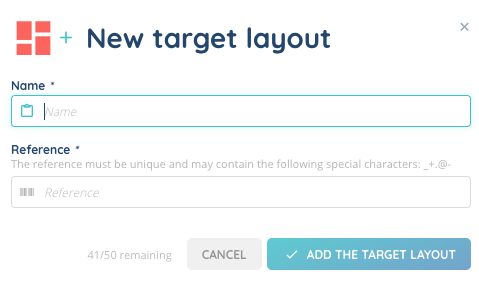
You must define:
- A Name, used to identify the target layout in the interface
- A Reference, used as a technical identifier
Once created, the target layout immediately appears in the list.
3. Target layout list
Each target layout is displayed in a table with the following columns:
- Name
- Reference
At the end of each row, several action buttons are available:
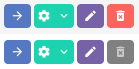
- Arrow: open the target layout to configure its fields
- Cogged wheel: access additional actions
- Duplicate
- History
- See dependencies
- Manage tags
- Trash: delete the target layout
If the target layout is used in dependencies, deletion is not possible and the trash icon is greyed out.
4. Configuring a target layout
After creating a target layout, open it to define its fields.
Click + Add to create a new field.
For each field, you must configure:
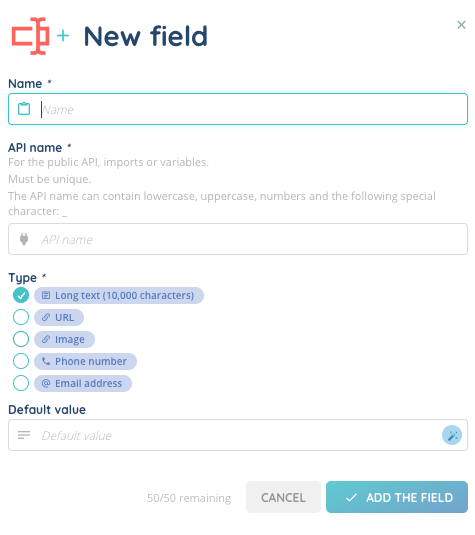
- Display name: the label shown above the field
- API name
- Type, selected from the following options:
- Long text (up to 10,000 characters)
- URL
- Image
- Phone number
- Email address
- Default value (optional)
The blue magic wand indicates that the default value is a magic field, meaning you can enter either text or INO cx variables.
5. Managing fields
Once added, each field can be:

- Edited
- Deleted
- History viewed
You can also:
- Adjust the size of each field
- Reorganize fields using the Change the order option
6. Using target layouts in campaigns
Once configured, a target layout can be used in:
- Voice campaigns
- SMS campaigns
- WhatsApp campaigns