

[Reading time: 7 minutes]
Overview
A Survey in INO cx is a structured questionnaire played directly to the customer in the middle of an interaction, in order to collect their feedback. The survey is a tree of questions: depending on the customer’s response, the next question can be different, until the end of the tree is reached.

A survey can be used on two channels:
- Voice: the questions are played as audio (TTS or sound file) and the customer answers with their phone keypad (DTMF) or with their voice (speech recognition).
- Messaging: the questions are sent as text in the chat and the customer types their answer.
Typical use cases include post-interaction satisfaction surveys, NPS-style measurements, qualification before advisor handover or any short questionnaire that can be answered with a key press or a yes/no.
This article focuses on the configuration side: how to create a survey, build its tree of questions and wire it into a Smart Routing. For everything that happens after a survey is launched — runtime behaviour for the customer, viewing the answers, filters, reporting — see the Surveys – Use them article of the help center.
1. Access and permissions
Surveys are configured in the Maker, in the Toolbox module. From the left menu, open Toolbox > Surveys.
To access and configure surveys, the user’s role must include the appropriate rights on the Surveys entity (Read, Create, Modify, Delete). These permissions are managed in the Roles module of the Maker.
Surveys are part of the Smart licence. Note that being able to configure a survey (right on the Surveys entity) is independent from being able to view its answers (which is controlled at the profile level — see the Surveys – Use them article).
2. Create a survey
To create a new survey:
- Go to Maker > Toolbox > Surveys.
- Click the +Create button at the top right.
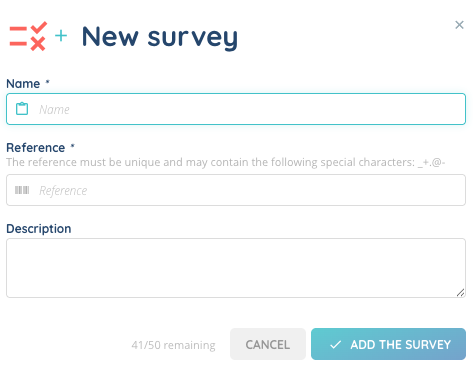
- Fill out the form:
| Field | Required | Description |
|---|---|---|
| Name | Yes | Display name of the survey. |
| Reference | Yes | Unique identifier used to reference the survey in your configurations. Must be unique and may contain only the following special characters: _ + . @ - |
| Description | No | Free text to describe the purpose of the survey. |
- Click Save.
The new survey appears in the list. At this stage, the survey exists but does not yet contain any question. Click on its name to open the survey editor and start building it.
3. Build the survey
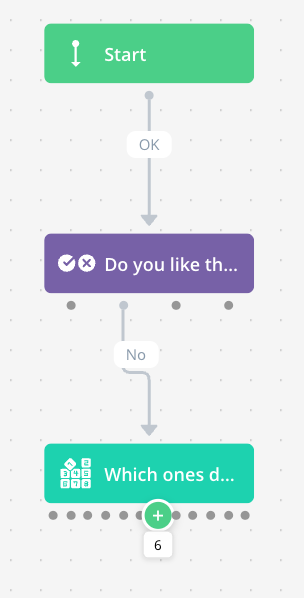
The survey editor presents the survey as a tree of questions, similar to the Smart Routing or Scripts editor. Each question has a content, response options, and links that determine which question is asked next depending on the customer’s response.
The tree always starts from a Start node, which marks the entry point of the survey. This node is created automatically when the survey is created — there is nothing to configure on it. The first real question is the one linked from the Start node.
3.1. Add a question
A new question is added either by clicking the + output handle of an existing question (or of the Start node, for the very first question), or by right-clicking on an existing question and selecting Add a question.
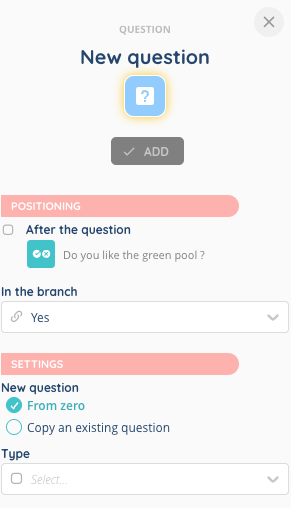
The question form then opens in the side panel with a choice between two creation modes:
Copy an existing question: duplicate a question that already exists in the survey.
From zero: start from an empty question and configure it.
| Kind | Description |
|---|---|
| Multiple choice question | The customer answers by choosing a digit between 0 and 9. Each digit can branch to a different next question. |
| Yes/no question | The customer answers with Yes or No. In DTMF, key 1 is associated with Yes and key 2 with No. |
3.2. Question content
For each question, the following parameters are available:
| Field | Description |
|---|---|
| Audio version / Text version | Each question can be enabled on the voice channel, on the messaging channel, or on both. At least one version must be enabled — a question with no enabled version will be ignored when the survey is played. |
| Question content | The text or audio of the question. For voice, this is the script for the TTS engine or the reference of the sound file to play. For messaging, this is the text sent in the chat. |
| Question summary | Short title shown as a header to the advisor when reading the answers in the Quality Management module. Required. |
| Sound file reference | If a pre-recorded sound file is used instead of TTS, the reference of the sound file. |
3.3. Input type
For voice questions, you choose how the customer’s answer is captured:
- Numeric keys: the customer presses a digit on the phone keypad (DTMF). For multiple choice, each key is associated with its respective number. For yes/no, key 1 = Yes, key 2 = No.
- Speech recognition: the customer says the answer out loud. For multiple choice, voice recognition expects a number from 0 to 9. For yes/no, it expects Yes or No.
3.4. Playback settings (voice)
For voice questions, additional settings control how the question is played:
| Field | Description |
|---|---|
| Message repeat key(s) | One or more keys (typically * or #) the customer can press to have the question played again. |
| Message skip key(s) | One or more keys the customer can press to skip the question. |
| Number of plays | Maximum number of times the question is played if no answer is received. Between 1 and 10 (default: 1). |
| Maximum time to make the selection (sec) | How long the system waits for a response. Between 30 and 120 seconds (default: 30). |
3.5. Link the questions
The branches out of a question depend on its kind. Each branch is a link from the response value to the next question:
| Question kind | Available links |
|---|---|
| Multiple choice | One link per digit (0 to 9), plus a default All answers link that catches every other response, plus a Question ignored link triggered when the customer skips the question. |
| Yes/no | Yes, No, All answers, Question ignored. |
Each branch of a question (a digit, All answers, Yes, No, Question ignored) has its own + output handle next to it. Click the + of the branch you want to wire to add the next question — the link to that new question is created at the same time. You don’t need to draw the link separately.
Two types of links can coexist in the tree:
- Normal link: forward progression created when you add a new child question from a + output.
- Unnatural link: a link that goes back to a previous question or jumps across branches, to handle loops or shortcuts.
To create an Unnatural link instead of a new question, drag the + of the source response and drop it onto an existing question in the tree. The link is created backwards (or sideways) without adding a new node.
Existing links remain editable: click on a link to open its side panel and reassign it, or delete it from the right-click menu of the link itself.
3.6. Modify or delete a question
On each question, the following actions are available:
- Modify this question: change the content, summary, input type or playback settings.
- Delete this question: remove the question. Links pointing to it are also removed.
- Delete this question and its entire branch: remove the question and every question reachable only through it.
4. Trigger the survey from a Smart Routing
A survey is played to the customer through a Smart Routing action of type Survey. The action is available in voice and messaging Smart Routings.
In the Smart Routing editor:
- Add a Survey action to the routing tree.
- Pick the survey to play from the list.
- Configure the branches out of the action.
The Survey action has three possible outcomes that you can wire to different branches of your routing:
| Outcome | Meaning |
|---|---|
| Survey answered | The customer reached the end of the survey. |
| Survey not found | The selected survey could not be retrieved (for example because it has been deleted). |
| Error | A technical error occurred during the survey. |
5. Edit, duplicate or delete a survey
From the Surveys list, each row provides the following actions:
| Action | Description |
|---|---|
| Edit | Modify the Name, Reference or Description of the survey. The tree of questions is edited from the survey details page. |
| Duplicate | Create a copy of the survey, including all its questions and links. Only the Name and Reference of the copy must be updated. |
| Delete | Remove the survey. Before deleting a survey that is still used by a Smart Routing action, make sure to detach it from that action, otherwise the Smart Routing will fall on the Survey not found outcome at runtime. |
Several surveys can be deleted at once by selecting them in the list and using the bulk delete action.
Once a survey has been deployed and is collecting answers, see the Surveys – Use them article to learn where the answers are accessed, how to filter them and how they feed into reporting.