
[Reading time: 6 minutes]
Overview
A task is a to-do that you schedule and follow up on from your banner, for example a call-back to make, an email to send, or a follow-up on a customer file. Tasks are handled in the Tasks module of your banner, where you can create them, search and filter them, edit them, link them to a CRM card and follow their progress through their status.
This article focuses on how to use tasks day to day. The configuration of task categories and task types in the Maker is covered in Tasks – Set them up.

Prerequisites
- A Smart license.
- The Access tasks right enabled on your user profile (section Tasks > Rights). Without it, the Tasks module is not available.
- At least one task category associated with your user profile. You only see and create tasks in the categories linked to your profile.
- Depending on what you need to do, the Create tasks, Modify tasks and Delete tasks rights (section Tasks > Task processing of your profile).
Note: these rights and category associations are set on your user profile in the Maker. See Tasks – Set them up.
1. Opening the Tasks module
Open the Tasks module from your banner. The module lists the tasks of the categories linked to your profile, most recent first. Each row shows the following columns:
| Column | Description |
|---|---|
| Status | Where the task stands: Pending, Processing or Finished (see section 5). |
| Name | Name of the task. Click it to open the task. |
| Type | The task type, which carries the flow (Voice, Email, SMS…). |
| Category | The task category. |
| Private | Whether the task is private (see section 6). |
| Trigger mode | Automatic or Manual — only meaningful for SMS-type tasks. |
| Start date | Date on which the task must start (or the trigger date for an automatic SMS task). |
| Date end | Date on which the task must be finished. A due date already passed is highlighted. |
1.1. Searching and filtering
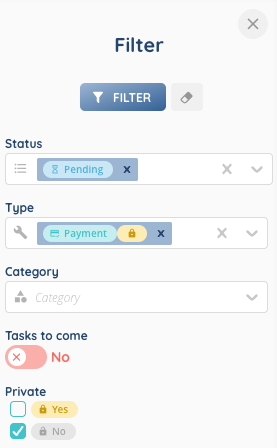
Use the search bar to look for a task — the search is performed on the name and the category. You can also refine the list with the following filters:
| Filter | Description |
|---|---|
| Status | Keep only tasks in the selected statuses (Pending, Processing, Finished). |
| Type | Keep only tasks of the selected task types. |
| Category | Keep only tasks of the selected categories. |
| Tasks to come | Keep only tasks whose start, end or trigger date is in the future. |
| Private | Keep only private tasks, only non-private tasks, or both. |
2. Creating a task
- In the Tasks module, click Create.
- Fill in the following fields:
| Field | Description |
|---|---|
| Name | Name of the task. |
| Description | Optional description of what the task is about. |
| Category | Task category. Only the categories linked to your profile are available. Required. |
| Type | Task type. It determines the flow of the task (Voice, Email, SMS…). |
| Trigger mode | Displayed only for SMS-type tasks. It only changes which date field you fill in: Automatic shows a single Trigger date, Manual shows a start/end window. The date is used to filter and find the task; it does not send anything on its own. |
| Private | Set to Yes to make the task private (see section 6). Defaults to No. |
- Set the dates in the Date section:
- For a standard task — or an SMS task in Manual mode — set a Start date and/or a Date end. The end date must be after the start date.
- For an SMS task in Automatic mode — set a single Trigger date instead. This date only schedules the task in your list; it does not trigger an automatic send or a banner notification.
- Click Save. The new task is created with the Pending status.
Note: you can keep several tasks open at the same time in the module, up to a limit of 10. Close a task you no longer need before opening another one.
3. Consulting and editing a task
Click a task’s name in the list to open it. The task opens in your banner, with its status shown next to the title.
- To edit the task, switch to edit mode, change the values, then click Save. If you don’t want to keep your changes, cancel edit mode to restore the previous values.
- Use Refresh to reload the task with the latest data.
- If the task is linked to a CRM card, a CRM card tab lets you open the card directly next to the task (see section 4).
Note: the Modify tasks right is required to save changes. You cannot change a task’s status by hand — the status reflects the task’s own lifecycle (see section 5).
4. Linking a task to a CRM card
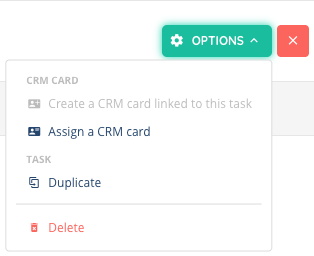
A task can be linked to a CRM card so you keep the customer file at hand while you work on the task. From an open task, use the Options menu:
| Action | Description |
|---|---|
| Assign a CRM card | Link an existing CRM card to the task. Open the card in the CRM module of your banner first, then come back and select it here. |
| Create a CRM card linked to this task | Create a new CRM card that is directly associated with the task. |
| Dissociate the CRM card | Remove the link between the task and its CRM card. |
Note: assigning or creating a CRM card requires the CRM module and the corresponding rights on your profile. Only cards you are allowed to access can be linked.
5. Understanding task statuses
Every task carries a status that reflects where it stands in its lifecycle:
| Status | Meaning |
|---|---|
| Pending | The task has been created and is waiting to be handled. |
| Processing | The task is currently being processed. |
| Finished | The task is complete. |
Note: a task that is being processed cannot be deleted (see section 7).
6. Private tasks
A task marked as Private is not visible to everyone:
- The creator of the task always sees their own private tasks.
- A manager also sees the private tasks created by the members of their team.
- Other users cannot see a private task they did not create.
Non-private tasks are visible to everyone whose profile is linked to the task’s category.
7. Deleting a task
- To delete a single task, use the Delete action from the task’s Options menu. If you are in edit mode, leave it first.
- To delete several tasks at once, select them in the list (up to 10 at a time) and use the delete action of the table.
- A task in the Processing status cannot be deleted. If a multiple deletion includes such a task, none of the selected tasks are deleted.
Note: deleting a task requires the Delete tasks right on your profile.